


How do I publish my game on the BYOND site or share it with the world? What is this "hub" thing?
If your game is ready to be released, or even if it's just ready to be tested on a regular basis, it's a good time to make use of the BYOND hub. The hub is a list of games made with BYOND, holding information like their description, where to find the game's documentation, how to download the game, etc. To publish your game on our website, you need a hub entry.
Only BYOND Members can create new hub entries. Becoming a Member helps support BYOND and comes with other perks, including the ability to keep the download files for your game on our website.
Getting started
To make a hub entry, login on the BYOND website. On the My Account menu, select the Manage Account option. This brings you to a page where you can see all kinds of things you can change about your account. At the top of the page are different "tan" links. One of those options is Hub Entries. That's the one you'll need, so click it.
After that you should see a page that says "Your Games", "Your Demos", and "Your Libraries". If this is your first time publishing anything on the BYOND hub, each of those sections will be blank except for a link that says "Add a new ___". Click the "Add new game" link.
Now you will see a page with some more tabs, and a lot of blank text boxes, checkboxes, and other information to fill out. The main tab where you'll start out says "New Game Info". Before you begin, one thing that's helpful to know is that it's OK to make mistakes or put in information you might want to change later. The info you enter into this form isn't going to be set in stone.
The first items you'll see are the "hub path" and the name of the game. A hub path is just a short way of referring to your game, like if your game was called Robot Invasion then the hub path would be something like "YourName.RobotInvasion", which you'll notice has no spaces. Your account name, in this compressed form without spaces, is already filled in for you. For now, skip the hub path box. There's a checkbox right below it that says "Set hub path based on title", so if you enter Robot Invasion as the title of your game, BYOND will convert this into proper path form for you.
A couple of things you should know about hub paths: They don't have to match the name of the game, so if your game has a long name you can use an acronym instead. The hub path should be unique--you shouldn't have two entries on the same account with the path YourName.RobotInvasion. You can change the hub path later on, but once the game is released and downloaded this can prevent users from upgrading, so any changes should probably be made early on.
After you've given your creation a name, you're asked for a short description. If you've seen other games on the BYOND hub, this is what appears just below the title on their pages, and this is also what will be seen if someone finds your game in a search. Keep it simple: "Your squadron of space fighters stands between Earth and certain destruction!"
Once the short description is done, it's time for the long description. If people go to the hub page for your game, this is what they'll see. This is usually a good place to talk about the type of game it is, what features players can expect, and maybe give them a little dash of the story. You can use HTML here to make your page a little more colorful, but it'll look best if you don't go overboard. You can use fancy HTML styling here, but even plain text will look good. For a really great polished look, look at the back of some software boxes and see how they're written, what info they tell you about the game's capabilities, and what they use (such as screen shots) to grab your attention.
At this point you have the information for a basic hub entry. This hub entry will be hidden from people by default, so they can only see it by following the URL directly. Before going further, go ahead and hit the Save button at the bottom of the screen.
The page has reloaded now, and you'll see some new information. The first item that wasn't there before is a URL for your game: http://www.byond.com/games/YourName/RobotInvasion. That is the hub entry for your game. Go ahead and click the link to see how your page looks.
Now back to the editing page. You'll see the date it was created listed there too. You'll also see that the path has been set to YourName.RobotInvasion. Before you do any more editing, fire up Dream Maker and open your game project. Somewhere in the code, add this:
world
    hub = "YourName.RobotInvasion"
What's the point of setting the world.hub value? When your game is being hosted online, the page that you just created for its hub entry will show any servers in a special "Games Live" box along with whoever is playing the game at that time.
Game help, and making your game downloadable
OK, that should be set now, so go back to the editing page. It's time to look at some other features you can set. The first one is Info URL. If you have a separate website for your game, you can put the URL for it here. This is very helpful if you have a lot of documentation and help files and want to give users an easy way to find that information.
Next comes the download information. You don't need to do this if you don't want to, but making it possible for people to download your game means more people will play it--otherwise they can play only when you host the game for them. In order to make your game downloadable, you need to have a .zip file already made for it. See the section below on packaging files for information on how to create a .zip. BYOND Members can upload files to their own Member file space. You can also find a different web host if you perfer, and upload the file there. (File download sites like rapidshare don't work for downloading BYOND games, because they use wait screens. You'll need a web host that will just deliver the file to whoever asks for it.)
BYOND Members can upload directly from this page by just choosing a file. By doing that, the file will be uploaded as a hidden file in their Member file space with a name like Author.Game.zip that matches the hub path. If the hub entry is freely available to download, or if the user who wants to download is a subscriber, they have access to this file. Uploading a file this way fills in the download URL automatically.
The Hub Version box should contain the number 0. You don't need to change this now, but once your hub entry is officially ready and people start downloading your game, add 1 to this number any time you change your game and then create and upload a new .zip file. Increasing the version number tells BYOND that you have an update available, so anyone who has downloaded an older version will be notified.
Below this you'll see a Display Version box. If you leave this blank, your hub page will show "Version 0" or "Version 3" or whatever number you put in the Hub Version box. However, you can use any version system you like so you can put in "0.1 alpha" and your hub page will say "Version 0.1 alpha" instead.
Before moving on, press Save again, and take another look at your hub page now that you've added this new information. If you provided them, you should see a "Website" link for your info URL. If your game is downloadable, you should see a link offering users the chance to download and play your game.
Adding banners and icons
The next tab on the editing page is Graphics. Your hub entry can have a banner, and a small and large icons. The large icon will probably be seen the most, so do that first. Create a .jpg, .gif, or .png file that is 64 pixels wide, 64 high, and make sure the file isn't bigger than 10 KB (which shouldn't be a problem). Hit the Browse button underneath Large Icon, and find the image file you made. Hit OK. You can do the same thing with a 32×32 file for your Small Icon, but this is optional--BYOND will just use your large icon and display it at a smaller size if you don't have a small one available.
Below that you can include a banner. BYOND banners are 250×60 pixels in size, and the file can't be bigger than 16 KB. If you have a file like this, follow the same steps you did for the icons.
Press the Save button again. This should upload your icon and banner files, if you supplied any, and they'll now appear on the editing page. If you visit the hub page to take a look at any changes, the banner (if you used one) should appear.
Visibility, hub password, helpers, and subscriptions
Take a look at the Options tab. The first thing you'll see there is an option to make your game visible, and one below that to submit it for admin review. If you make your game visible, then while your game is active (downloadable or recently played) and you're still a BYOND Member, the latest updates you post in your game's forums will appear on the main BYOND Forums under In Development. Once your game is ready for an admin to look it over, check the box that says it's ready for admin review. They'll take a look and determine if it belongs in Original Games, Fangames, or if it still needs more work.
Further down on the page, you should see information about a hub password here. What's a hub password? When you set world.hub to "YourName.RobotInvasion" in your code, that linked the game to your hub entry. The problem is that anyone else can use the same thing in their own game, and their game would appear in your hub entry as if it was yours. This "spoofing" doesn't happen often, but if you're concerned about it, you can create a password for your hub entry. The box that says "Require authentication for live games" has to be checked in order to use this feature, so check it now. Also check "Generate a random password for me", and now click Submit Changes once again.
Now there's a password for your hub entry, like 3qb77RnAX0. Copy the password, and go back to Dream Maker and paste it into your code:
world
  hub = "YourName.RobotInvasion"
  hub_password = "3qb77RnAX0"
Another choice in the Options tab is to say whether your game is intended for just one player, or if it's multi-player, or if it can be played either way. This makes a difference in how the game is presented on the hub and how it is used by players. A single-player game, for instance, is automatically launched in Dream Seeker after download.
At the bottom, a Helpers section lets you add other people who can help create your game. This box will only appear once you have already created a hub entry, which by this point you should have already done. Helpers have pretty much most of the same privileges as the author when it comes to making edits. Helper posts in your forums will count as posts made by the author, and can show up as updates in the main BYOND forums.
Now take a quick look at the Subscriptions tab. BYOND does provide a subscription system so you can provide extra perks to users who subscribe to your game, or you can make it available only for subscribers to download. (This is not available to fangames!) If you chose any of these options, and pressed Save to activate them, a new box would appear where you could manage your list of subscribers. You would also have the option to create terms of service for your subscribers.
If you're ready for people to download your game, just use the Package Files menu option again to create a .zip, and re-upload it. You won't need to change the Hub Version number this time because no one has downloaded your game yet, but later on remember to increase the version number every time you upload a change to the file.
Now for the last step. Once you're ready for this game to be visible to others, go back to the Options tab and uncheck the box that says "Hide this game in the hub index". Now hit Submit Changes again. Once your game is available for players, it should show up on the website for others to see. It won't show up in the main games index however until an admin reviews it for listing.
Using BYOND URLs for fun and profit
On the web you use URLs starting with http and https every day, and sometimes you'll see ftp, file, and other forms like mailto or torrent. Each of these protocols behaves a little different. You have probably seen URLs starting with byond now as well. This protocol is installed along with BYOND's software, so your browser can recognize it and open up those links in the BYOND pager. What you might not know is that there are a lot of ways to use the byond protocol to link people to your games.
The most basic URL you can use is this:
byond://Author.Game
Author.Game is the hub path for your game, so your URL might look like byond://YourName.RobotInvasion. In the pager, this URL will download the game if it can, and then ask if you want to launch it in Dream Seeker or Dream Daemon, or play live. If no download is available, the user is taken to the hub page for your game. As of BYOND version 430, all of the following are supported:
byond://Author.Game##local
This URL downloads the game if need be, then opens it in Dream Seeker. It does not check for any updates to the game.
byond://Author.Game##host
This URL downloads the game if it is not already installed, then opens it in Dream Daemon so you can host a session without having to be one of the players. This can be combined with some options like ##version.
byond://Author.Game##hub
Using ##hub takes the user to your game's hub entry page, http://www.byond.com/games/Author/Game.
byond://Author.Game##remote
byond://Author.Game##live
The ##live and ##remote options will connect users to a live server for your game. If only one server is live, users will be taken directly to it. If more than one server is live or none are yet, the user is redirected to the live games list on your hub entry page.
(Note: Prior to build 428, ##live always went to the hub page. ##remote will work as expected no matter which version the user has installed, so at least for now it's a better choice.)
byond://Author.Game##info
If your game has a URL for documentation, the user will be redirected there. Otherwise the user will be taken to your hub entry page.
byond://Author.Game##guest
Adding ##guest to any URL will allow the player to join as a guest if the game permits it, without launching their pager. Normally, the pager will require a login unless the player hasn't logged in before and doesn't have any keys saved on their pager. This option bypasses the need for a login or even having the pager up at all.
byond://Author.Game##version=X
You've probably seen this URL format on the BYOND Website. If the user has your game installed but the version is lower than X, they will automatically upgrade; otherwise not. It can be combined with ##host. If you just use the ##version=X flag itself, the pager will ask whether you want to open the game in Dream Seeker or Dream Daemon, or play a live game after the download.
byond://BYOND.world.123
This is the format of a URL for a specific server. The number changes for each new hosted world, so you'll never need to use this directly.
byond://1.2.3.4:2000
This is the actual direct URL for a BYOND game. If you just started a server and know your IP address and port, you can use this byond://IP:port format to invite other people to join your server. When you host the world in Dream Daemon, you will be given this URL in the World tab so you can easily copy it and paste it into the BYOND pager, MSN, AIM, forums, or whatever else you use to contact your friends.
Since the byond:// URL format is so versatile, you can use it in your games too. It can also be used on your hub page, and in forum posts.
Packaging files
To make your game downloadable, you will need to package it into a .zip file and upload it to the web. To create a .zip file with Dream Maker, go to the Build menu and select Package Files. The option you'll want to choose is "World executable files".
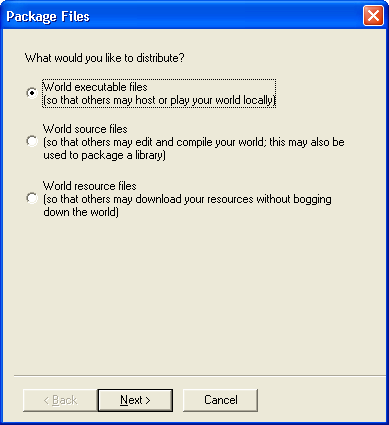
Press the Next button. The next page will ask you to enter information about the file. Choose a name for your file--the default choice is usually good enough--and also tell Dream Maker if you want any additional files to be included in the .zip package. Additional files might include help files, any file your game uses that wasn't put in single quotes and so didn't get included in the game's .rsc file when it was compiled.

Press the Finish button, and a .zip file will be created for you. Upload this to your BYOND Member file space, or to any other online host that lets users download files directly. (Don't use "cyberlocker" sites that make users go through several pages to download; they won't work.) If you have a hub entry, you can then edit it and change the download URL. After that, users can download your game from your hub page and even from the BYOND pager.

